If you’re experiencing trouble adding an AOL account to Spark, please follow these steps.
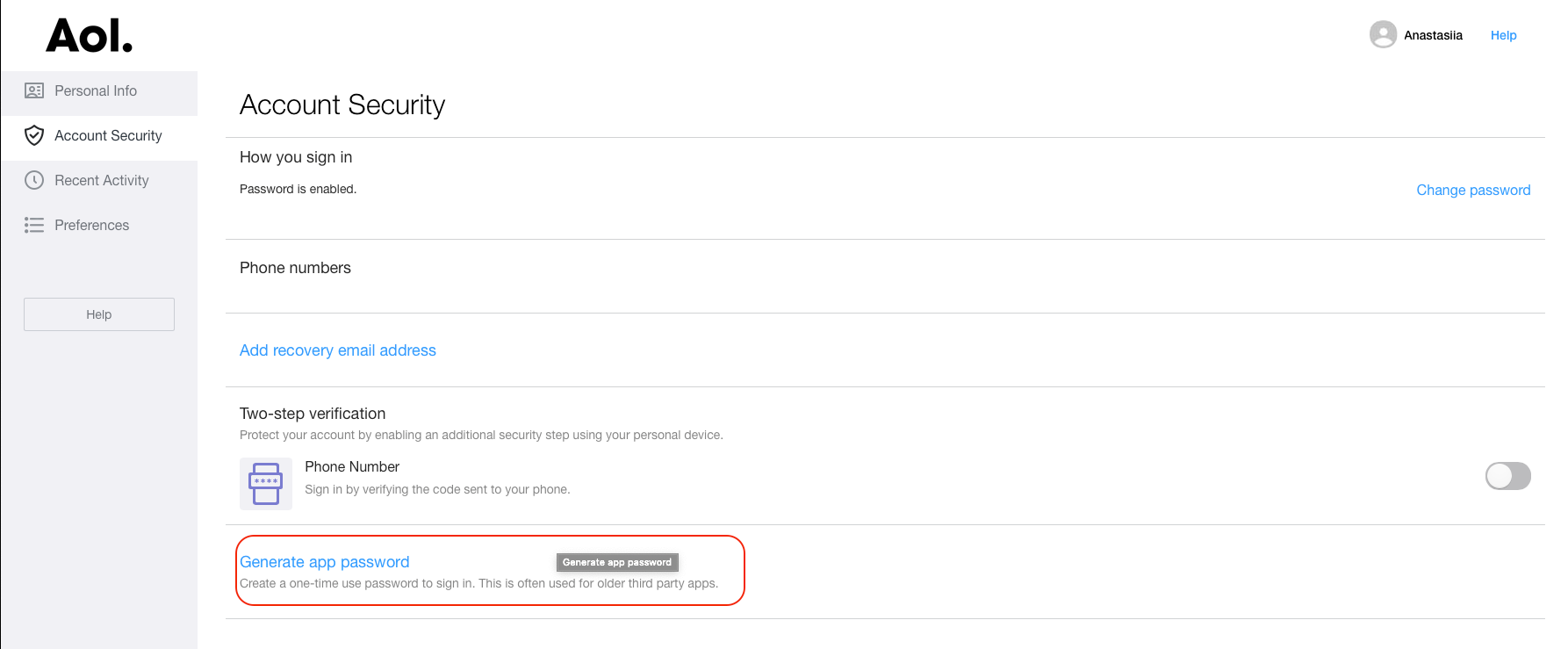
1. Generate an app password for Spark on the AOL account’s webpage
- Open the AOL account webpage.
- Select Account > Account security.
- Click Generate app password or Manage app passwords.
- Select Spark from the drop-down menu and click Generate.
- Follow the instructions below the password. Make sure to enter the password into Spark without any spaces.
- Click Done. Use this app password and your email address to sign in to Spark.
2. Add your AOL account to Spark
Please check the network connection on your device. If you use a VPN, we can’t guarantee Spark will work properly. The quality of the performance via a VPN depends solely on the VPN network's servers. For this reason, we recommend you turn the VPN off.
Some organizations configure firewalls to prevent access to certain websites from their networks. Ask the administrator whether access to Spark (the third-party email application) is allowed. Alternatively, you can try to connect to a different network.
To add your account to Spark:
Here are the instructions for Mac:
- Open Spark Settings.
- Select Accounts > Add an account.
- Enter your email and password.
Here are the instructions for Windows:
- Open Spark Settings.
- Select Accounts > Add an account.
- Enter your email and password.
Here are the instructions for Android:
- Tap the menu icon
 at the top left.
 - Open Settings > Email Accounts > Add Account.
- Select Other.
- Enter your email address and password.
Here are the instructions for iOS:
- In Spark, tap the menu icon
 at the top left.
 - Open Settings > Email Accounts > Add Account.
- Select Set Up Account Manually.
- Enter your email address and password.
3. Contact our support team
If you’re still experiencing problems adding your AOL account, we are happy to help you personally.
Here are the instructions for Mac:
- Open Spark Settings.
- Select Support and click Send next to Diagnostics information.
- A new email window will appear. In the Subject line, write “Cannot connect to AOL.” We need this email subject to provide you with a quick, personal reply.
- In your message, write the email address you’re trying to log in to and attach a screenshot with the error message appearing when you try to add an account.
- Send an email, and our support team will get in touch to solve your problem.
Here are the instructions for Windows:
- Open Spark Settings.
- Select Support and click Send next to Diagnostics information.
- A new email window will appear. In the Subject line, write “Cannot connect to AOL.” We need this email subject to provide you with a quick, personal reply.
- In your message, write the email address you’re trying to log in to and attach a screenshot with the error message appearing when you try to add an account.
- Send an email, and our support team will get in touch to solve your problem.
Here are the instructions for Android:
- Tap the menu icon at the top left.
- Open Settings > Support > Diagnostics > Send Diagnostics Information.
- A new email window will appear. In the Subject line, write “Cannot connect to AOL.” We need this email subject to provide you with a quick, personal reply.
- In your message, please write the email address you’re trying to log in to and attach a screenshot of the error message that appears when you try to add an account.
- Send the email, and our support team will get in touch to solve your problem.
There is no possibility to access Spark and contact us if the email account you can’t connect to Spark is the first account you try to add.
In this case, please add any other email account to Spark first. Then try adding your primary account. If it fails to connect, contact our support team as described above.
Here are the instructions for iOS:
- In Spark, tap the menu icon
 at the top left.
 - Open Settings > Support > Diagnostics > Send Diagnostics Information.
- A new email window will appear. In the Subject line, write “Cannot connect to AOL.” We need this email subject to provide you with a quick, personal reply.
- In your message, please write the email address you’re trying to log in to and attach a screenshot of the error message that appears when you try to add an account.
- Send the email, and our support team will get in touch to solve your problem.
There is no possibility to access Spark and contact us if the email account you can’t connect to Spark is the first account you try to add.
In this case, please add any other email account to Spark first. Then try adding your primary account. If it fails to connect, contact our support team as described above.
Spark automatically attaches a .zip file with the application logs to your email. We need the logs for our investigation. This file may contain some sensitive personal data, and we assure you we’ll treat it as confidential information.